
The 12 Best Free Video Editing Software Programs for 2026
In 2026, creating professional-quality video content no longer requires a hefty software budget. Whether you're a beginner launching a YouTube channel, a small business creating social media ads, or an independent filmmaker, a powerful suite of free tools is at your fingertips. The challenge isn't access; it's choosing the right tool for your specific project and skill level.
This guide cuts through the noise to provide a detailed, hands-on analysis of the 12 best free video editing software options available today. We move beyond generic feature lists to give you practical insights. For each platform, you’ll find a breakdown of its unique strengths, real-world limitations, and ideal user scenarios. We provide screenshots and direct links to get you started immediately.
Our goal is to help you find the perfect editor for your workflow, from cinematic color grading in DaVinci Resolve to quick social clips in CapCut. We’ll cover everything from installation considerations to suggested workflows, ensuring you make an informed decision without spending a dime. For those considering the trade-offs between free and paid options, exploring professional video editing software comparisons can clarify the benefits of industry-standard tools.
Finally, we'll explore when a traditional editor might not be the most efficient solution. We'll examine how emerging AI video platforms are revolutionizing content creation, offering a faster alternative for specific tasks. This comprehensive resource is designed to equip you with the knowledge to produce stunning videos, regardless of your budget.
1. Blackmagic Design — DaVinci Resolve
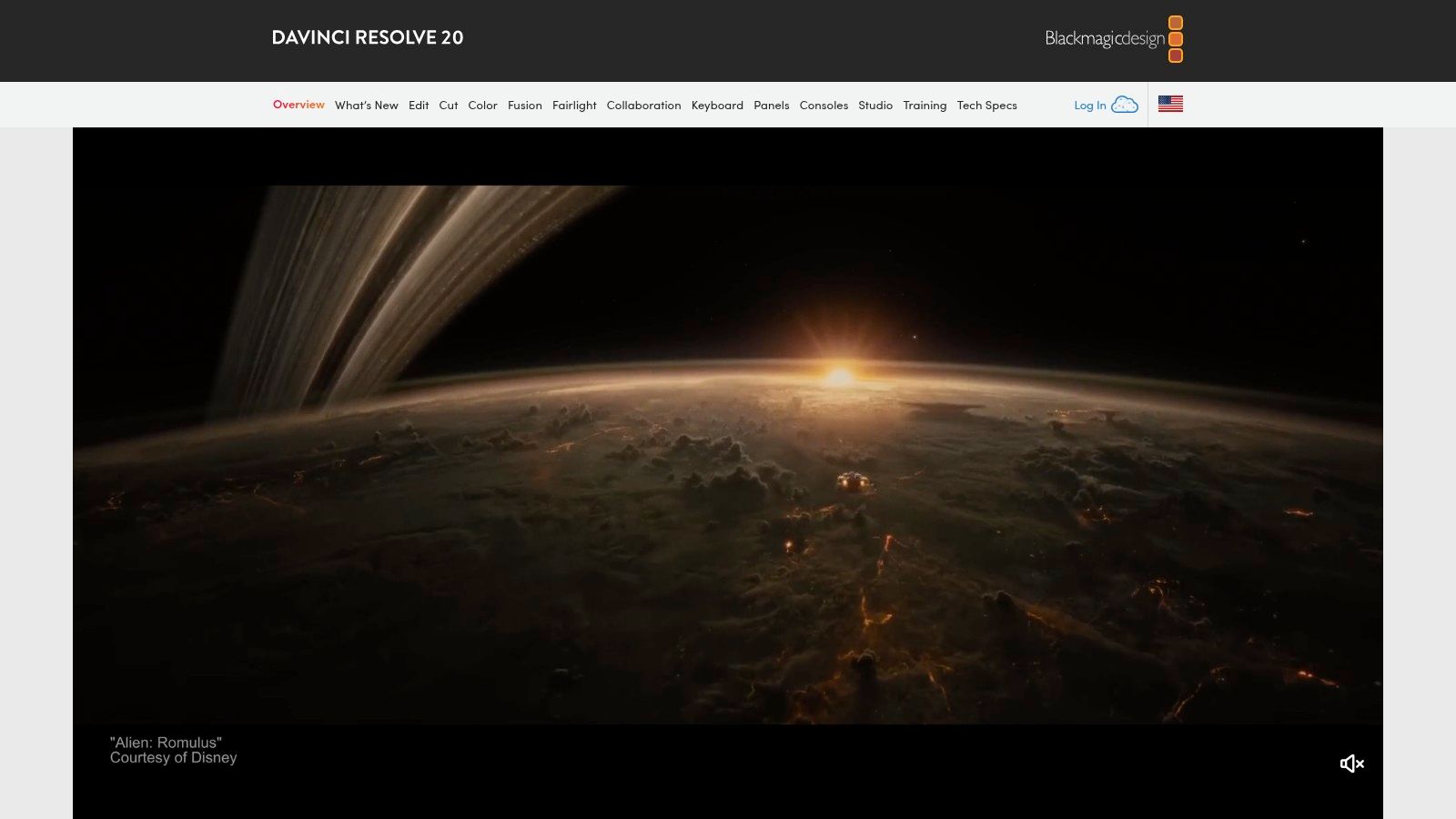
DaVinci Resolve is not just another free video editor; it's a professional-grade, all-in-one post-production suite used on Hollywood films and high-end television shows. Its free version offers an astonishingly complete toolset, making it arguably the most powerful piece of best free video editing software available. Unlike competitors that limit core features, Resolve provides its entire editing, color grading, visual effects (Fusion), and audio post-production (Fairlight) environments without a paywall.
This integrated workflow is its standout feature. You can move from cutting a timeline to applying complex visual effects, then to advanced color correction, and finally to a full audio mix without ever leaving the application. This eliminates the need for round-tripping between different programs, saving immense time and preventing compatibility issues. The free edition supports resolutions up to 4K UHD at 60 frames per second, more than sufficient for YouTubers, social media marketers, and even independent filmmakers.
Key Features and User Experience
DaVinci Resolve is organized into "Pages," which are dedicated workspaces for different tasks:
- Cut & Edit: Two distinct editing environments. The Cut page is designed for fast-turnaround projects like social media content, while the Edit page offers a traditional, robust non-linear editing timeline.
- Color: This is Resolve's legendary strength. You get industry-leading color correction tools, including node-based grading, power windows, and HDR support.
- Fusion: A full 3D compositing and visual effects environment built directly into the software, perfect for creating motion graphics and advanced effects.
- Fairlight: A comprehensive digital audio workstation (DAW) for professional audio mixing, sound design, and mastering.
Practical Considerations
The primary drawback is its steep learning curve, especially for beginners accustomed to simpler editors. However, Blackmagic Design provides a massive library of free, high-quality training videos and project files to help new users get started.
| Feature Comparison | DaVinci Resolve (Free) | DaVinci Resolve Studio ($295) |
|---|---|---|
| Max Resolution | 4K UHD (3840x2160) | Up to 32K |
| Frame Rate | Up to 60 fps | Up to 120 fps |
| AI Features | Limited | Full DaVinci Neural Engine (e.g., Magic Mask, Smart Reframe) |
| GPU Acceleration | Single GPU | Multi-GPU Support |
| Noise Reduction | Not included | Advanced Temporal and Spatial Noise Reduction |
| Collaboration | Blackmagic Cloud (Project Libraries only) | Full remote collaboration and project management |
Ideal User: This software is best for aspiring filmmakers, serious YouTubers, and content creators who want to learn a professional workflow and need industry-standard color grading and audio tools without an initial investment.
Website: https://www.blackmagicdesign.com/products/davinciresolve
2. Apple — iMovie
For users embedded in the Apple ecosystem, iMovie is the quintessential entry point into video editing. Pre-installed and completely free on every Mac, iPhone, and iPad, it offers a surprisingly capable and intuitive experience that prioritizes speed and simplicity. While it lacks the professional depth of a tool like DaVinci Resolve, iMovie excels at helping beginners and casual users create polished, high-quality videos for social media, family projects, and school assignments with minimal effort, making it a top contender for the best free video editing software for Apple users.
Its standout feature is the seamless integration with Apple's ecosystem. You can start a project on your iPhone, add clips from your iPad, and then use Handoff to apply finishing touches on your Mac, with all your media synced through iCloud Photos. This frictionless workflow is unmatched for creators who use multiple Apple devices. iMovie supports 4K video and provides all the essential tools without ads, watermarks, or hidden upgrade fees, offering a clean and focused editing environment.
Key Features and User Experience
iMovie is designed for accessibility, offering guided tools to help new editors create compelling videos quickly:
- Magic Movie & Storyboards: These guided features automate much of the editing process. Magic Movie instantly creates a stylized video with transitions and music, while Storyboards provide templates for specific video types like tutorials or product reviews.
- Core Editing Tools: Provides a simple magnetic timeline, along with essential functions like titles, filters, transitions, and basic color correction. It also includes tools for green-screen effects and picture-in-picture.
- Apple Ecosystem Integration: Effortlessly import media from your Photos library and export directly to YouTube, email, or save as a file.
Practical Considerations
The primary limitation of iMovie is its Apple-only availability, making it inaccessible to Windows or Android users. Its simplicity is also a double-edged sword; it lacks the advanced manual controls, multi-track audio editing, and extensive effects libraries found in more professional software.
| Feature Comparison | iMovie | Final Cut Pro ($299.99) |
|---|---|---|
| Price | Completely Free | One-time purchase |
| Platform | macOS, iOS, iPadOS | macOS only |
| Timeline | Single video track, limited audio tracks | Advanced magnetic timeline, unlimited tracks |
| Color Grading | Basic filters and adjustments | Professional color wheels, curves, and LUTs |
| Effects & Plugins | Limited built-in effects | Extensive library, third-party plugin support |
| Multi-cam Editing | Not supported | Advanced, automatic syncing for up to 64 angles |
Ideal User: This software is perfect for beginners, students, families, and casual content creators using Apple devices who need to quickly produce clean, high-quality videos without a steep learning curve or any financial cost.
Website: https://www.apple.com/imovie
3. Microsoft Clipchamp
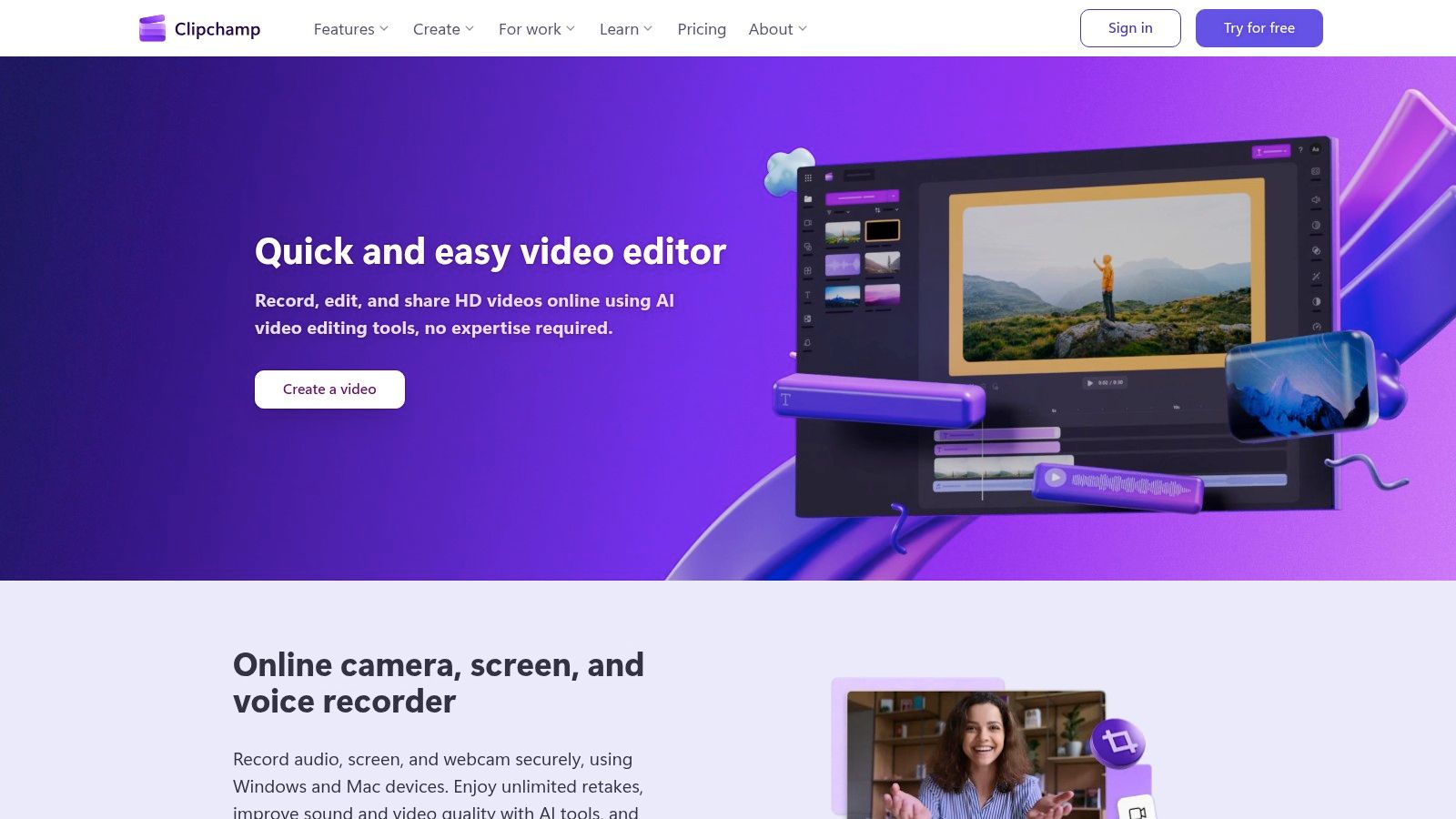
Microsoft Clipchamp offers a refreshingly simple and accessible approach to video editing, operating entirely within a web browser. Acquired by Microsoft and integrated into its ecosystem, Clipchamp is designed for quick, straightforward projects without the need for powerful hardware or lengthy installations. Its free version is surprisingly capable, providing core editing tools, templates, and even screen recording, making it a strong contender for the best free video editing software for beginners and casual users.
The platform's key advantage is its low barrier to entry. Anyone with a browser can start editing immediately, and its intuitive, timeline-based interface feels familiar to users of both simple and advanced editors. For those invested in the Microsoft 365 ecosystem, Clipchamp offers seamless integration with OneDrive for easy file management. The free tier exports videos in up to 1080p HD without a watermark, which is perfect for social media, school projects, and internal business communications.
Key Features and User Experience
Clipchamp simplifies the editing process with a clean, drag-and-drop interface and helpful tools for everyday tasks:
- Web-Based Editing: No installation required. Edit from anywhere on a Chromebook, Mac, or PC with an internet connection.
- Templates & Social Presets: Start projects quickly with pre-made templates and easily export in aspect ratios perfect for TikTok, Instagram Reels, and YouTube.
- Built-in Tools: Includes a screen recorder, webcam recorder, and a text-to-speech generator for creating voiceovers in multiple languages.
- Automatic Captions: Generate synchronized captions for your videos with a single click, improving accessibility and engagement.
Practical Considerations
The main limitation of the free plan is the feature-gating behind a Microsoft 365 subscription, which unlocks 4K exports, premium stock assets, and brand kit functionality. Since it's browser-based, performance can also become sluggish on very long or complex projects with numerous effects.
| Feature Comparison | Clipchamp (Free) | Clipchamp (Premium with Microsoft 365) |
|---|---|---|
| Max Resolution | 1080p HD | 4K UHD |
| Watermark | None | None |
| Stock Content | Free stock assets available | Premium stock video, audio, and images |
| Brand Kit | Not included | Custom fonts, colors, and logos |
| Content Backup | Not included | Cloud backup for video content |
| Filters & Effects | Standard filters and effects | Premium filters and effects |
Ideal User: This software is best for students, social media managers, and small business owners who need to create polished, high-definition videos quickly without a steep learning curve or a powerful computer.
Website: https://clipchamp.com
4. CapCut
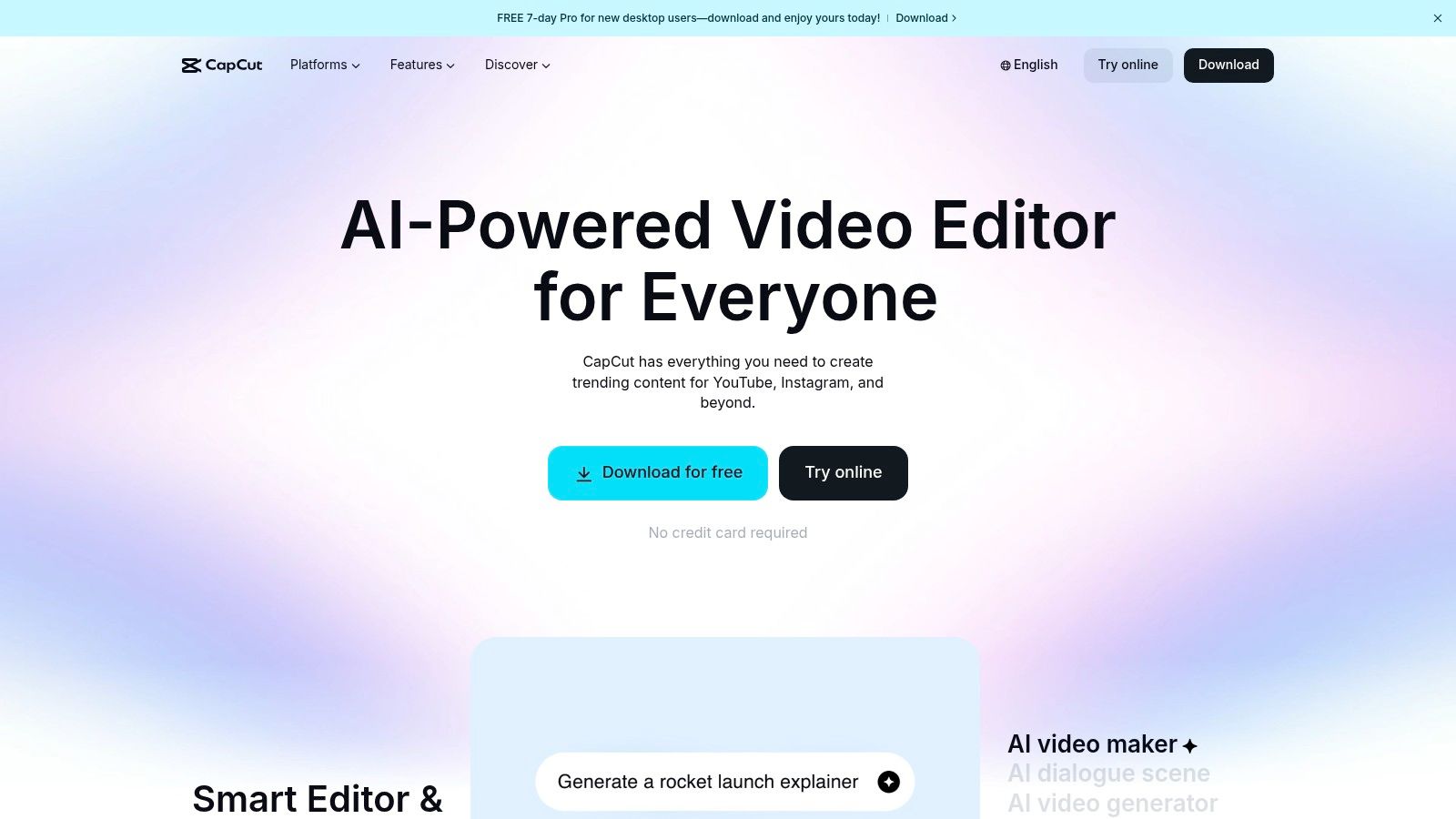
CapCut has rapidly become the go-to editor for social media content, evolving from a mobile-first app into a powerful cross-platform tool. It excels at creating trendy, fast-paced videos for platforms like TikTok, Instagram Reels, and YouTube Shorts. Its strength lies in a massive library of templates, effects, and sounds, combined with smart features like auto-captions and background removal that streamline the creation of engaging, short-form content.
Unlike more traditional editors, CapCut is built for speed and social media trends. Its interface is incredibly intuitive, allowing creators to produce professional-looking videos in minutes, not hours. The free version is remarkably generous, offering watermark-free exports up to 1080p and access to a vast array of assets. The seamless cloud sync between its desktop and mobile apps makes it one of the best free video editing software options for creators who edit on the go.
Key Features and User Experience
CapCut's workflow is designed to minimize friction and maximize creative output for social-first video:
- Template-Based Editing: Users can browse thousands of pre-built video templates and simply replace the clips with their own footage for instant, professional results.
- AI-Powered Tools: The free version includes impressive AI features like auto-captions with customizable text styles, one-click background removal, and smart audio cleanup.
- Integrated Asset Library: Access a huge collection of royalty-free music, sound effects, stickers, and transitions directly within the editor.
- Cross-Platform Sync: Start a project on your phone and finish it on your desktop computer (or vice versa) using its cloud-based project storage.
Practical Considerations
CapCut's feature set and monetization strategy can change, with some tools occasionally moving behind its Pro paywall. While its focus on short-form content is a major strength, it lacks the deep, granular control found in more complex non-linear editors, making it less suitable for long-form narrative projects.
| Feature Comparison | CapCut (Free) | CapCut Pro (Subscription) |
|---|---|---|
| Max Resolution | 1080p | Up to 4K |
| Export Watermark | No | No |
| Cloud Storage | Limited (e.g., 1 GB) | Increased (e.g., 100 GB) |
| AI Features | Basic (Auto Captions, BG Removal) | Advanced (AI Relighting, Slow-Mo) |
| Asset Library | Large selection of free assets | Full access to premium effects & templates |
| Collaboration | Cloud sync for individual use | Team-based collaboration spaces |
Ideal User: This software is perfect for social media managers, TikTok and Instagram creators, and small businesses who need to produce trendy, high-quality short-form videos quickly and efficiently without a steep learning curve.
Website: https://www.capcut.com
5. Lightworks
Lightworks is a non-linear editor with a deep history in professional filmmaking, boasting credits on major motion pictures. It brings this legacy workflow to the masses with a free version that serves as an excellent entry point into traditional editing techniques. While many modern editors prioritize simplicity, Lightworks maintains a professional-grade interface, making it a valuable piece of best free video editing software for those learning the craft.
Its core strength lies in its time-tested, robust editing engine that is optimized for speed and responsiveness, even on modest hardware. The free tier provides access to the fundamental tools needed for assembling a project, including a multi-track timeline, transitions, and a selection of real-time effects. This makes it a great choice for students and hobbyists who want to understand the principles of professional editing without the complexity of a full-blown suite.
Key Features and User Experience
Lightworks organizes its workflow into four main tabs, providing a structured approach to post-production:
- Log: An area for ingesting, organizing, and reviewing your raw footage.
- Edit: The primary workspace featuring a traditional NLE timeline for cutting, trimming, and arranging clips.
- VFX: A dedicated space for applying and customizing video effects, from color correction to keying.
- Audio: A simple interface for adjusting audio levels, applying filters, and mixing your sound.
Practical Considerations
The most significant limitation of the free version is its export cap of 720p resolution, which may be insufficient for projects intended for larger screens. The user interface, while powerful, can feel less intuitive than more modern alternatives and may present a learning curve for absolute beginners.
| Feature Comparison | Lightworks Free | Lightworks Create (€9.99/mo) / Pro (€23.99/mo) |
|---|---|---|
| Max Resolution | 720p (H.264/MP4) | Up to 4K UHD |
| Frame Rate | Variable frame rates supported | Full support for professional frame rates |
| Advanced Effects | Limited selection | Boris FX & NewBlue Titler Pro (with Pro) |
| Timeline Export | YouTube/Vimeo Direct Upload | Full project, AAF, OMF, and XML export options (with Pro) |
| Codec Support | Limited H.264 import | All-format support including ProRes, RED R3D, Blackmagic RAW |
| Hardware I/O | Not included | Support for AJA, Blackmagic, and Matrox I/O cards (with Pro) |
Ideal User: This software is best for film students, aspiring editors, and hobbyists who want to learn on a platform with a professional editing pedigree and don't require exports higher than 720p for their projects.
Website: https://lwks.com
6. Kdenlive
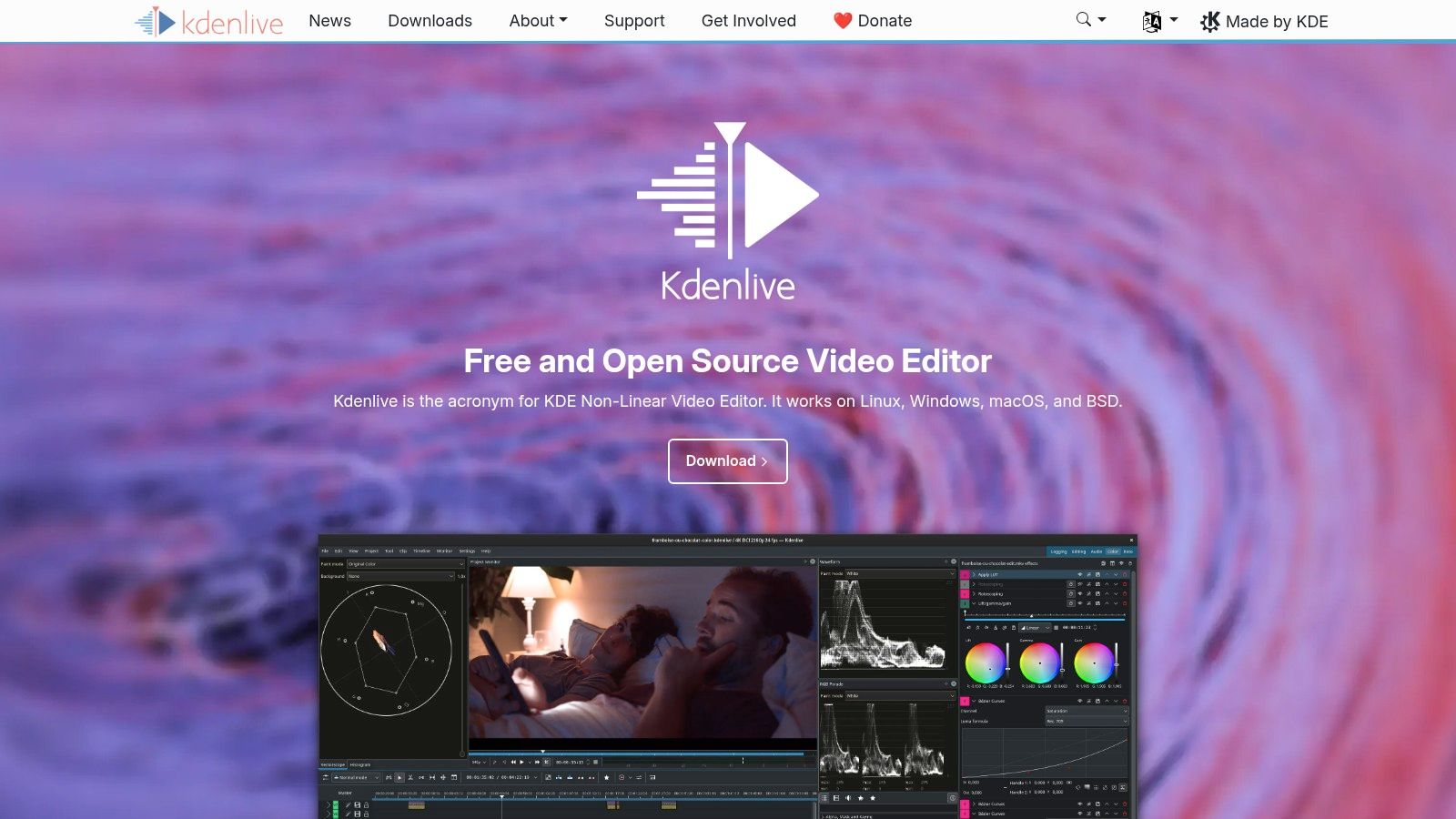
Kdenlive is a powerful open-source, non-linear video editor that stands as a testament to what community-driven software can achieve. As part of the KDE project, it offers a surprisingly robust feature set on Linux, Windows, and macOS, positioning itself as a top-tier piece of best free video editing software for users who need flexibility without a price tag. Its strength lies in its traditional multi-track timeline approach, which will feel familiar to anyone who has used a classic NLE, combined with advanced capabilities like proxy editing.
This proxy workflow is a significant advantage, allowing users to edit high-resolution footage (like 4K) smoothly even on modest hardware by creating low-resolution stand-in files for the editing process. Kdenlive is completely free under the GPL license, meaning no watermarks, no feature limitations, and no subscriptions. Its active development cycle ensures it receives frequent updates with new features and bug fixes, supported by a helpful and engaged community.
Key Features and User Experience
Kdenlive provides a customizable interface and a wide array of tools suitable for both simple cuts and more complex projects.
- Multi-track Timeline: An intuitive timeline for arranging multiple video and audio tracks, with standard tools for trimming, splitting, and moving clips.
- Effects and Transitions: A large library of built-in effects, transitions, and audio filters, along with keyframeable controls for precise animation.
- Proxy Editing: A crucial feature for performance, allowing for a seamless editing experience with high-resolution video files on less powerful computers.
- Scopes: Includes professional tools like a vectorscope, histogram, and waveform monitor to help analyze and correct video color and exposure accurately.
Practical Considerations
While incredibly powerful for a free tool, some users, particularly on macOS, have reported occasional stability issues. The interface, packed with professional tools, can also feel dense and somewhat intimidating for absolute beginners moving up from very basic editors.
| Feature Comparison | Kdenlive | A Commercial NLE (e.g., Premiere Pro) |
|---|---|---|
| Cost | Completely free (GPL License) | Subscription-based ($22.99/mo) |
| Watermark | None | None |
| Platform | Linux, Windows, macOS | Windows, macOS |
| Core Features | Multi-track, proxies, scopes, effects | All core features plus AI tools, cloud integration |
| Performance | Good, especially with proxies | Highly optimized for professional hardware |
| Community Support | Active forums and documentation | Professional customer support, extensive tutorials |
Ideal User: This software is best for hobbyists, students, and content creators using Linux or Windows who want a full-featured, traditional NLE without any cost. It's particularly well-suited for those working with 4K footage on mid-range computers.
Website: https://kdenlive.org
7. Shotcut
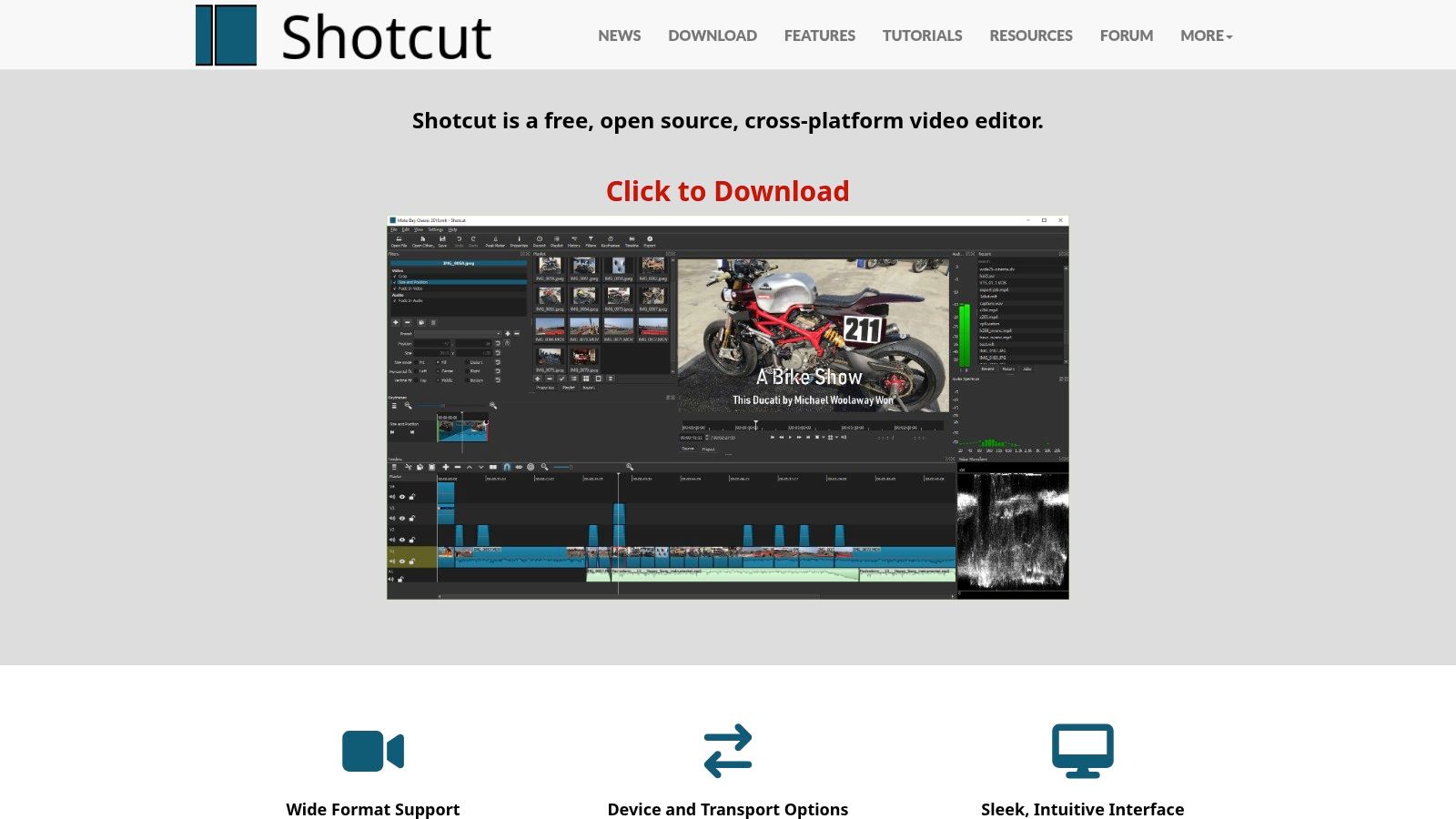
Shotcut is a powerful, open-source, and cross-platform video editor that stands out for its incredible format support. Built on the robust FFmpeg multimedia framework, it allows for native timeline editing, meaning you can mix and match various video formats and resolutions without a time-consuming import or conversion process. This makes it an exceptionally flexible piece of the best free video editing software for creators who work with diverse media sources, from professional cameras to screen recordings.
Its approach is more utilitarian than flashy, prioritizing function over form. Shotcut performs remarkably well even on mid-range hardware, making it accessible to users without high-end editing rigs. The software is also available as a portable app, which you can run from an external drive on any Windows, macOS, or Linux machine without installation, adding another layer of convenience for editors on the go.
Key Features and User Experience
Shotcut offers a customizable, dockable interface that can be arranged to suit your workflow. While its design might seem less polished than commercial alternatives, it’s packed with professional-grade features:
- Wide Format Support: Natively edit almost any audio/video format thanks to FFmpeg integration, with support for resolutions up to 4K.
- Advanced Audio Tools: Features audio scopes, filters like equalization and compression, and support for multi-channel audio.
- Video Effects & Filters: A vast collection of GPU-accelerated video filters, blending modes, and transitions, including keyframable effects for precise animation control.
- Time Remapping: Easily create slow-motion or fast-forward effects with advanced speed ramping controls.
Practical Considerations
The biggest challenge for new users is often the user interface, which can feel less intuitive at first glance. However, once you become familiar with its panel-based layout, it proves to be a highly capable and stable editor. Its open-source nature means it has an active community and receives regular updates.
| Feature Comparison | Shotcut (Free) | Commercial Editors (e.g., Premiere Pro) |
|---|---|---|
| Cost | Completely Free & Open Source | Subscription-based ($20.99/mo) |
| Platform Support | Windows, macOS, Linux (including portable versions) | Primarily Windows and macOS |
| Native Editing | Yes, extensive format support via FFmpeg | Often requires importing/transcoding for certain codecs |
| User Interface | Utilitarian, customizable | Highly polished, guided workflows |
| Hardware Demands | Low to Moderate | Moderate to High |
Ideal User: This software is perfect for video hobbyists, students, and content creators on a budget who need a reliable, feature-rich editor that runs well on various operating systems and hardware configurations.
Website: https://shotcut.org
8. OpenShot
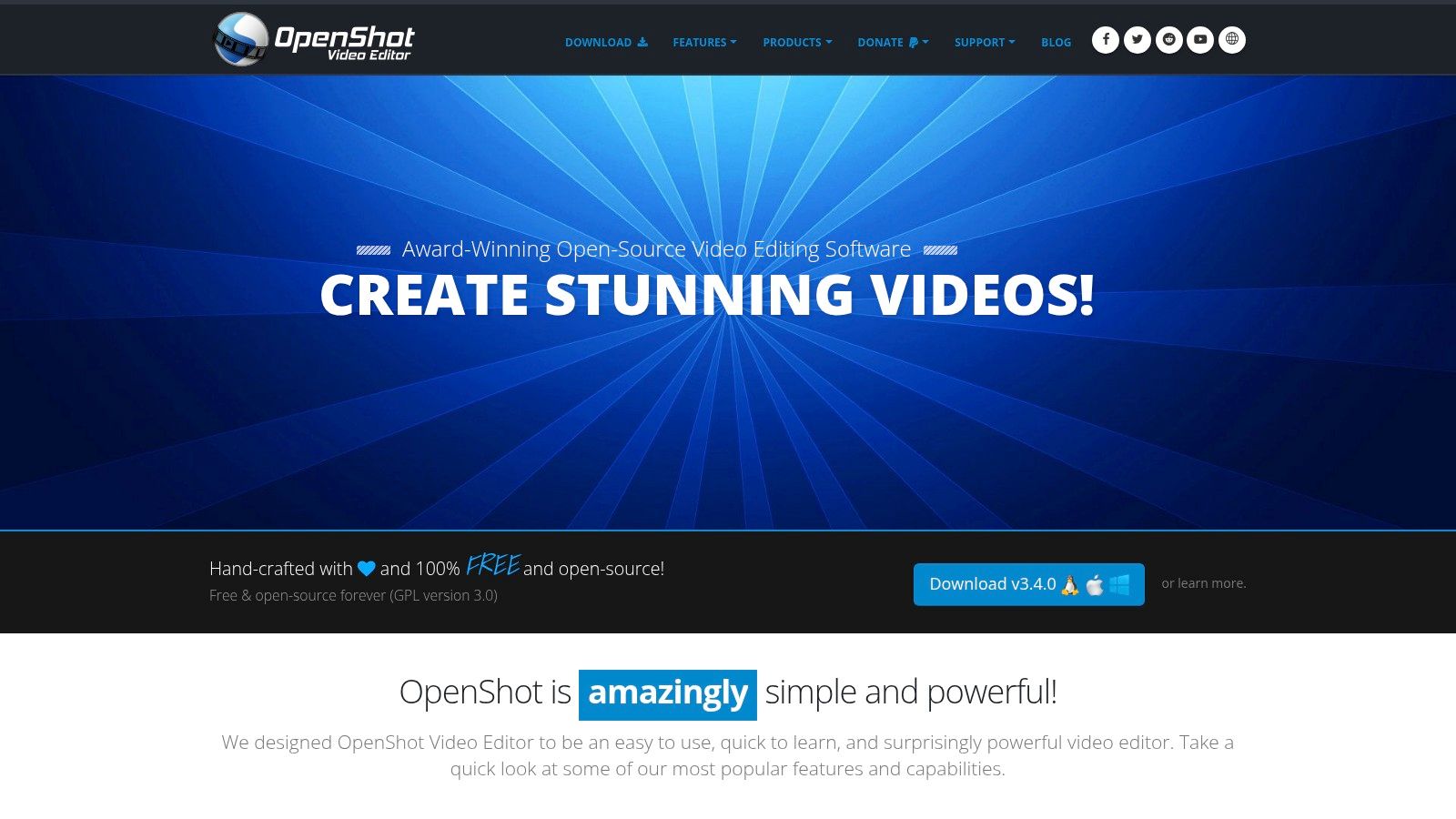
OpenShot is a powerful yet surprisingly easy-to-use open-source video editor designed to be accessible to everyone, regardless of their technical skill. As a piece of best free video editing software, its primary strength lies in its simplicity and cross-platform availability, running natively on Linux, macOS, and Windows. It strikes a balance between offering a rich set of features and maintaining a clean, intuitive interface that won't overwhelm beginners.
The platform is built on a powerful FFmpeg library, meaning it can read and write most common video and image formats. This flexibility makes it an excellent choice for users who work with diverse media types and need a reliable tool for quick cuts, basic animations, and straightforward video projects. Unlike more complex software, OpenShot focuses on getting the essentials right, making the editing process quick and efficient for everyday tasks.
Key Features and User Experience
OpenShot provides a classic drag-and-drop interface that feels familiar to anyone who has used a basic editor before. Key features are easy to find and apply:
- Unlimited Tracks: Add as many layers as you need for video, audio, and watermarks, offering significant creative freedom.
- Titles & Effects: It includes a simple title editor with templates and a decent library of video effects and transitions that can be previewed and applied directly to clips.
- Keyframe Animation: A surprisingly powerful keyframe framework allows you to animate the properties of any clip over time, perfect for creating simple motion graphics.
- Audio Editing: Basic audio editing is supported, including displaying waveforms on the timeline and splitting audio from video clips.
Practical Considerations
The main advantage of OpenShot is its gentle learning curve, making it ideal for first-time editors. However, users may occasionally experience stability issues, a common trade-off with volunteer-driven open-source projects. For security, it's crucial to download the software exclusively from the official website to avoid malicious counterfeit versions.
| Feature Comparison | OpenShot | Kdenlive (Another Open-Source Option) |
|---|---|---|
| Ease of Use | Very high; ideal for beginners | Moderate; more features but a steeper curve |
| Core Engine | C++, Python, PyQt5 | MLT Framework, Qt |
| Keyframing | Yes, curve-based interpolation | Yes, more advanced controls |
| Advanced Features | Basic (3D titles, simple effects) | More robust (multi-cam editing, advanced audio) |
| Stability | Generally stable, but can be prone to crashes with complex projects | Considered more stable for demanding projects |
| Cross-Platform | Yes (Windows, macOS, Linux) | Yes (Primarily Linux, with Windows/macOS support) |
Ideal User: This software is perfect for beginners, students, or anyone needing to create simple, clean videos like family movies, school projects, or basic social media content without the complexity of professional software.
Website: https://www.openshot.org
9. VSDC Free Video Editor
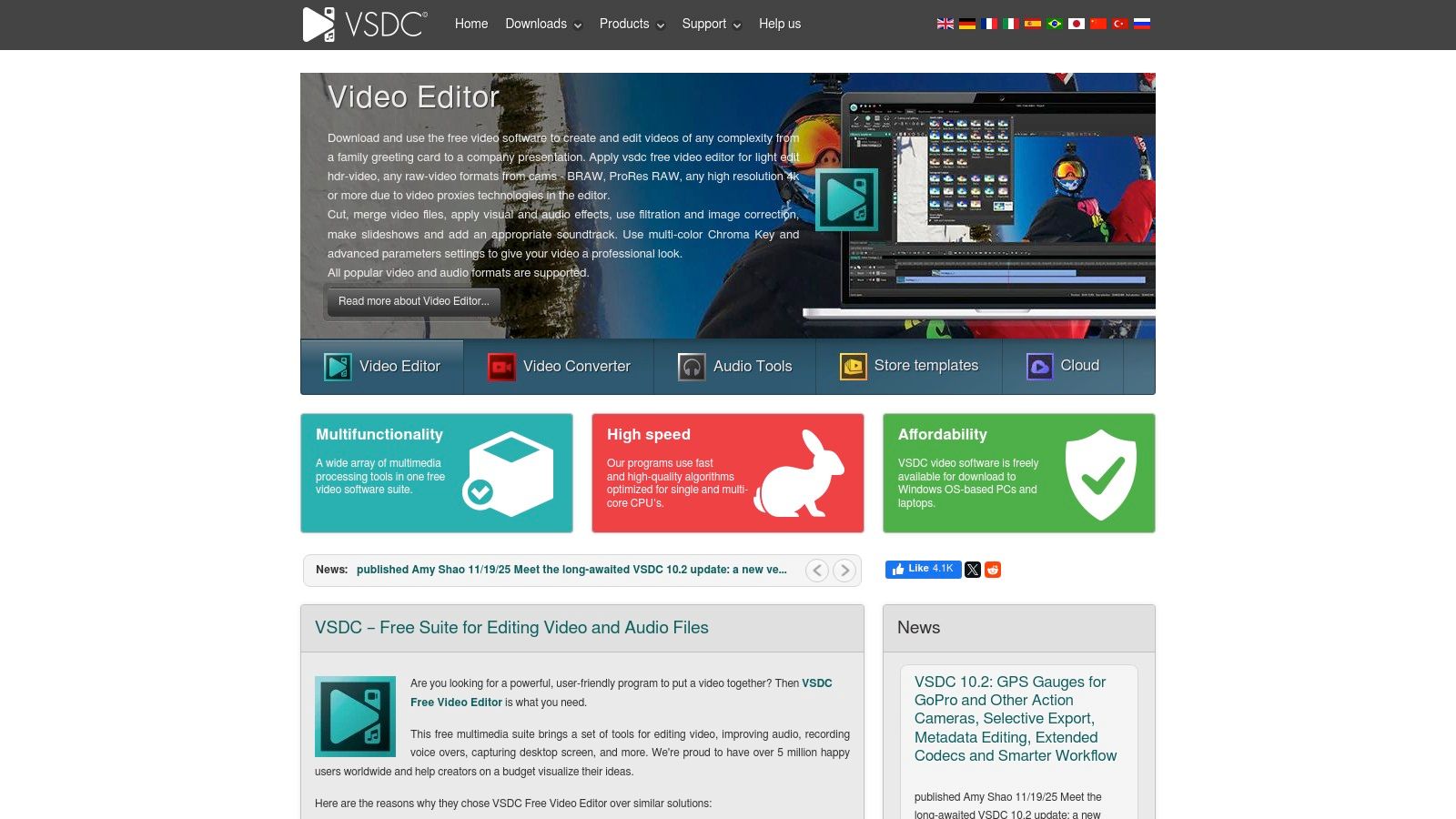
VSDC is a full-featured, non-linear editor designed specifically for Windows users, particularly those with less powerful hardware. Its free edition stands out by offering a surprisingly robust toolset without imposing a watermark on exports, a common limitation in other free software. This makes it a strong contender for anyone looking for the best free video editing software that runs efficiently on modest PCs while still providing advanced capabilities like picture-in-picture, color correction, and audio editing.
The software supports a multitrack timeline, allowing for complex compositions and overlays. It receives frequent updates, ensuring support for modern codecs and formats. VSDC strikes a balance between accessibility for beginners, thanks to a wealth of online tutorials, and the depth required for more intricate projects. While its interface might not be as polished as some premium alternatives, its functionality and performance on lower-end systems are its key advantages.
Key Features and User Experience
VSDC is a non-linear editor, giving you the flexibility to place and edit clips anywhere on the timeline. Its core strengths in the free version are:
- Broad Format Support: Handles a wide range of video, audio, and image formats, eliminating the need for pre-conversion.
- Visual & Audio Effects: Includes a large library of effects like color correction, object transformation, filters, and audio adjustments.
- Advanced Tools: Offers features rarely found in free editors, such as video stabilization, masking tools, and 4K export capability.
- Low System Requirements: Specifically optimized to run smoothly on older and less powerful computers.
Practical Considerations
The main limitation is its Windows-only availability, so Mac and Linux users will need to look elsewhere. Some users have reported quirks when downloading from third-party app stores, so it is highly recommended to download the software directly from the official VSDC website for the most stable version.
| Feature Comparison | VSDC Free Editor | VSDC Pro ($29.99) |
|---|---|---|
| Watermark | No | No |
| Hardware Acceleration | Not included | Yes (for faster export) |
| Motion Tracking | Not included | Yes |
| Advanced Masking | Basic | Advanced (e.g., video masking) |
| Audio Waveform | Not included | Yes (for precise audio editing) |
| Video Stabilization | Included | Included |
Ideal User: This software is best for Windows users with older or less powerful computers who need a capable, watermark-free editor for YouTube videos, family projects, or social media content without a steep learning curve or hardware investment.
Website: https://www.videosoftdev.com
10. Blender (Video Sequence Editor)
Blender is world-renowned as a professional-grade 3D creation suite, but hidden within this powerhouse is a surprisingly capable Video Sequence Editor (VSE). While not its primary function, the VSE offers a complete non-linear editing system, making Blender a unique contender for the best free video editing software, especially for projects that require deep integration with visual effects or 3D animation. Its biggest strength is its unified environment; you can create a complex 3D model, animate it, composite it over live-action footage, and edit the final sequence without ever leaving the application.
This integration is unmatched in the free software space. For creators working on VFX-heavy content, animated shorts, or architectural visualizations, the ability to seamlessly switch between modeling, rendering, and video editing is a game-changer. The VSE itself provides all the fundamental tools: a multitrack timeline, cutting and splicing, transitions, audio mixing, color grading, and more. It leverages the full power of Blender’s node-based compositor for advanced effects, offering limitless creative potential for those willing to learn its workflow.
Key Features and User Experience
Blender's VSE is one of several workspaces within the main application. Its core functionality includes:
- Video Sequence Editor: A standard NLE timeline for arranging video, audio, and image clips.
- Compositor Integration: Directly use Blender's powerful node-based compositor for advanced color grading, keying, and visual effects on your video strips.
- 3D Viewport: Overlay your 3D scenes and animations directly onto your video timeline for integrated VFX work.
- Scripting: Leverage Python scripting for automating tasks and creating custom tools, extending the editor's capabilities far beyond its default set.
Practical Considerations
The primary challenge is the steep learning curve, as the VSE's interface and logic are tied to the broader Blender ecosystem, which can feel unintuitive for users accustomed to dedicated video editors. It is crucial to download Blender only from its official website to avoid potential security risks from lookalike phishing sites.
| Feature Comparison | Blender (Video Sequence Editor) | Dedicated NLE (e.g., Kdenlive) |
|---|---|---|
| Primary Function | 3D Creation Suite with a built-in VSE | Dedicated Video Editing |
| VFX Integration | Native, seamless integration with 3D/VFX | Limited; requires round-tripping to other software |
| Learning Curve | High, especially for non-3D users | Moderate, focused solely on editing concepts |
| Community Support | Massive, though more focused on 3D | Strong, but specific to video editing issues |
| Resource Usage | Can be high, depending on 3D complexity | Generally optimized for video playback and rendering |
Ideal User: This is the perfect tool for 3D artists, animators, and VFX creators who need to edit their rendered sequences, as well as filmmakers looking for a free, powerful solution for integrating computer-generated imagery into their projects.
Website: https://www.blender.org
11. Canva — Free Online Video Editor
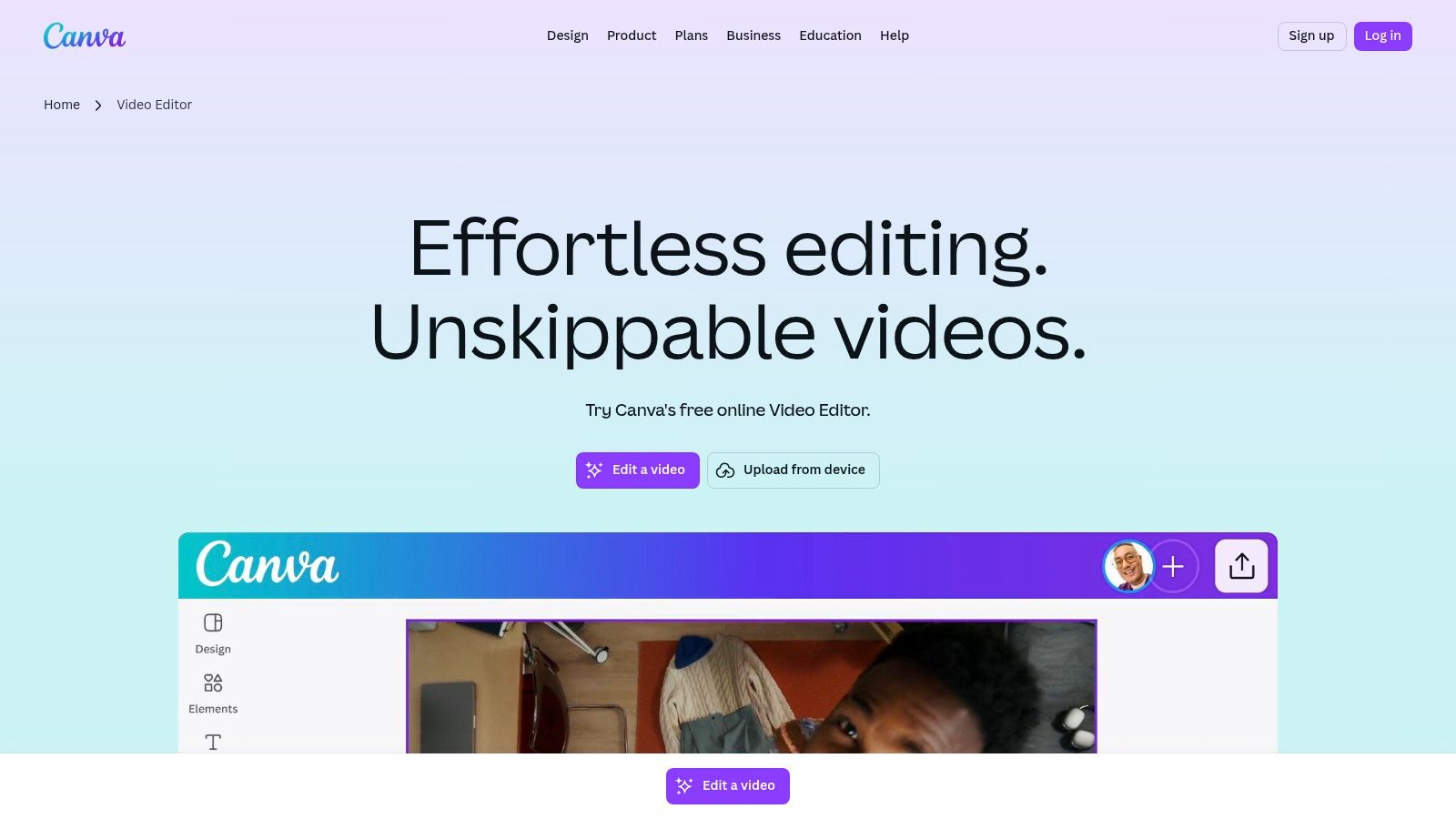
Canva has evolved from a simple graphic design tool into a comprehensive, browser-based creative suite, and its video editor is a standout feature for fast-paced content creation. It excels at producing stylish, branded videos for social media, ads, and presentations without requiring technical editing skills. Instead of a traditional timeline-focused approach, Canva uses a template-driven, drag-and-drop system that makes it incredibly accessible, solidifying its place as one of the best free video editing software options for beginners and marketers.
Its primary strength lies in its massive library of templates, stock footage, animations, and audio tracks that are seamlessly integrated into the workflow. Users can start with a pre-designed layout, customize it with their brand colors and logos, and have a professional-looking video ready in minutes. The free plan is surprisingly capable, allowing exports up to 1080p, which is perfect for most online use cases.
Key Features and User Experience
Canva’s video editor is designed for speed and simplicity, making complex tasks feel intuitive:
- Template-Based Editing: Choose from thousands of professionally designed templates for Instagram Reels, TikTok videos, YouTube intros, and more.
- Drag-and-Drop Interface: Easily add text, elements, stock video, and your own uploads onto the timeline.
- Brand Kit: Store your brand’s logos, fonts, and color palettes for one-click application to ensure content consistency (primarily a Pro feature).
- Direct Social Publishing: Share your finished video directly to social media platforms without leaving the browser.
Practical Considerations
While fantastic for quick projects, Canva is not a replacement for a full non-linear editor like DaVinci Resolve or CapCut. It lacks advanced features like keyframing, complex color grading, or in-depth audio mixing. The free version includes watermarked premium assets, so users must be mindful when selecting elements.
| Feature Comparison | Canva (Free) | Canva Pro ($119.99/year) |
|---|---|---|
| Export Resolution | Up to 1080p HD | Up to 4K UHD (with select plans) |
| Stock Library | Access to a large free library of photos & videos | Full access to 100+ million premium assets |
| AI Features | Basic features | Magic Switch, Magic Eraser, and other advanced AI tools |
| Brand Kit | One color palette with three colors | Multiple Brand Kits with full font and logo support |
| Cloud Storage | 5 GB | 1 TB |
| Collaboration | Basic real-time commenting and sharing | Advanced team features, templates, and approval workflows |
Ideal User: This software is perfect for social media managers, small business owners, and content creators who need to produce high-quality, branded videos quickly without a steep learning curve.
Website: https://www.canva.com/video-editor
12. VN (VlogNow)
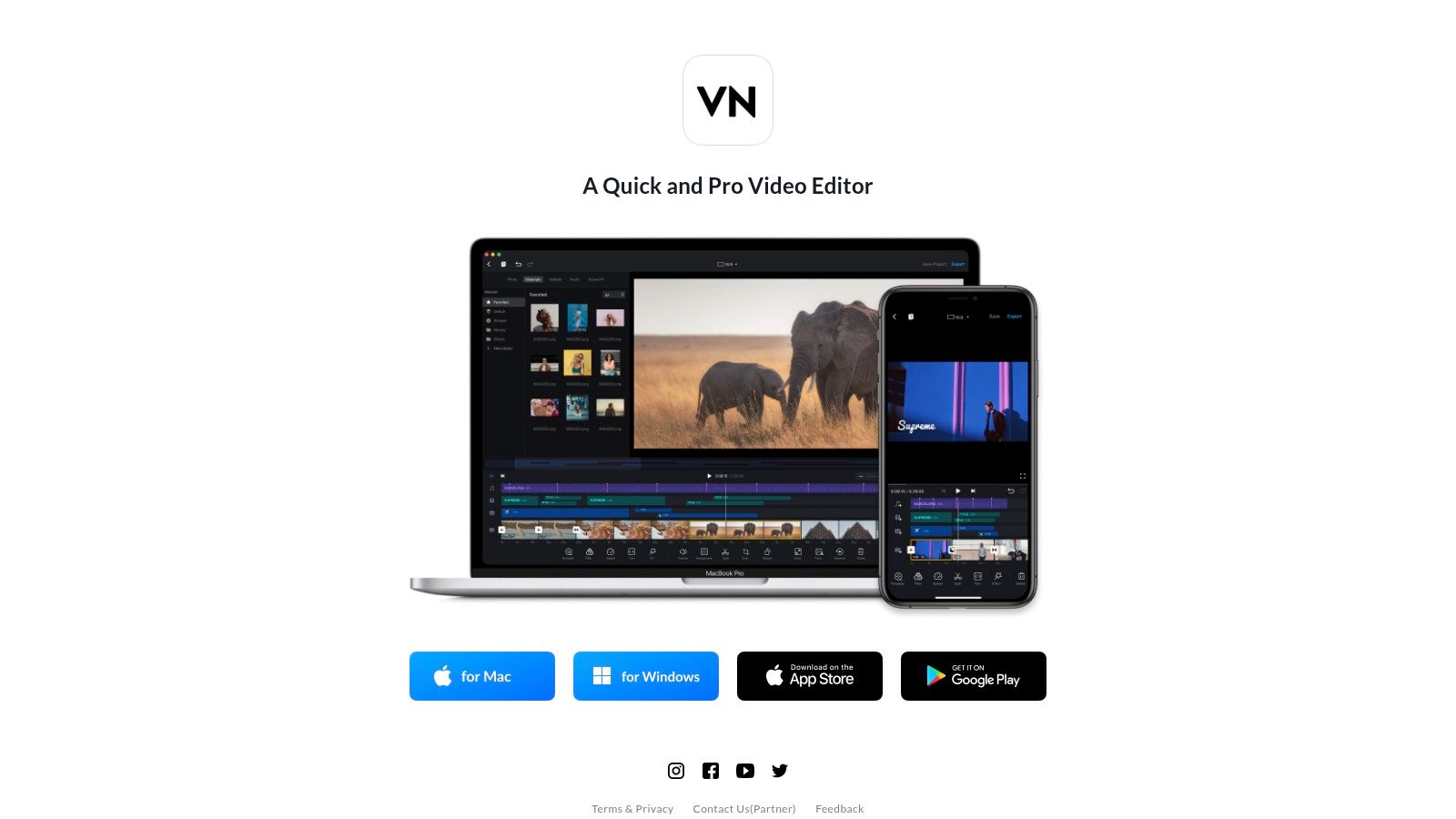
VN Video Editor, also known as VlogNow, has become a powerhouse mobile editor, offering desktop-grade features in a remarkably intuitive smartphone interface. It stands out by providing advanced tools like multi-track editing, keyframe animation, and speed curves completely free, without a watermark on exports. This makes it a top contender for the best free video editing software for creators who primarily work on their phones.
The ability to import custom LUTs for color grading and export in 4K at 60fps gives mobile content a polished, professional look that rivals what's achievable on a desktop. Its project-sharing feature allows users to hand off work between the mobile app and its desktop companion, creating a flexible workflow for editing on the go and refining on a larger screen. This combination of power and accessibility is rare in the mobile editing space.
Key Features and User Experience
VN’s interface is designed for touchscreens, making complex actions feel simple. The timeline is responsive and easy to navigate, even with multiple layers of video, text, and audio.
- Advanced Controls: Precise control over your edits with keyframe animations for position, scale, and opacity, plus customizable speed curves for dynamic slow-motion or fast-forward effects.
- Color & Audio Tools: Import your own 3D LUTs to achieve a consistent aesthetic, and use the multi-track audio editor to add music, sound effects, and voiceovers.
- Templates & Effects: A library of built-in templates, effects, and transitions helps creators quickly produce engaging social media content.
- Watermark-Free Export: Freely export your finished videos in high resolution without any branding, a significant advantage over many free competitors.
Practical Considerations
While the mobile experience is superb, the desktop app is less mature and can sometimes have syncing issues with mobile projects. Users occasionally report quirks during the export process, so it’s wise to double-check the final video before publishing.
| Feature Comparison | VN (Free) | VN Pro (Subscription) |
|---|---|---|
| Watermark | No | No |
| Export Quality | Up to 4K at 60fps | Up to 4K at 60fps |
| LUT Import | Yes (limited number) | Unlimited LUTs |
| Templates/Assets | Access to free library | Full access to premium templates, stickers, and fonts |
| Storage | Local device storage | Cloud storage and syncing options |
| Keyframing | Full access | Full access |
Ideal User: This software is perfect for TikTokers, Instagram Reel creators, and YouTubers who need a powerful, fast, and free editor on their phone. It's also great for anyone wanting to make quick, high-quality edits without being tied to a computer.
Website: https://vlognow.me
Top 12 Free Video Editors — Feature Comparison
| Product | Key Features | UX & Rating | Price / Value | Target Audience | Unique Selling Point |
|---|---|---|---|---|---|
| Blackmagic Design — DaVinci Resolve | Multitrack editing, Color, Fusion VFX, Fairlight audio | Professional power, steeper learning ★★★★☆ | 💰 Free core · Studio $295 | 👥 Pro editors, colorists, filmmakers | 🏆 Hollywood‑level color & integrated post ✨ Prompt-like node tools |
| Apple — iMovie | Guided edits, Magic Movie, Storyboards, 4K | Polished, extremely beginner‑friendly ★★★★☆ | 💰 Free (Apple devices) | 👥 Beginners, casual creators on Apple | ✨ Seamless Apple ecosystem handoff 🏆 Ease of use |
| Microsoft Clipchamp | Browser editor, templates, screen recording, OneDrive | Simple onboarding; browser limits on big projects ★★★☆☆ | 💰 Freemium (some features via Microsoft 365) | 👥 Casual creators & M365 users | ✨ Web‑first workflow + OneDrive integration |
| CapCut | Social templates, AI captions, cloud sync, 1080p free | Fast social workflows; template driven ★★★★☆ | 💰 Free · Pro for 4K/premium assets | 👥 Short‑form creators, TikTok/Reels editors | ✨ Social‑first AI tools & template speed |
| Lightworks | Traditional timeline, transitions, long film heritage | Mature but dated UX; export limits in free tier ★★★☆☆ | 💰 Freemium (720p) · Paid for 4K/I/O | 👥 Indie editors seeking film heritage | 🏆 Longstanding film/TV pedigree |
| Kdenlive | Multitrack, effects, proxies, active OSS dev | Powerful for free software; occasional quirks ★★★★☆ | 💰 Free (GPL) | 👥 Power users wanting no‑cost NLE | ✨ Robust feature set + open‑source flexibility |
| Shotcut | FFmpeg core, native editing, GPU filters, motion tracking | Utilitarian UI; solid codec support ★★★☆☆ | 💰 Free (OSS) | 👥 Users needing wide codec support | ✨ Deep format compatibility, native editing |
| OpenShot | Simple cuts, titles, transitions, keyframing | Very easy to learn; fewer pro tools ★★★☆☆ | 💰 Free (community) | 👥 First‑time editors & educators | ✨ Extremely approachable, community driven |
| VSDC Free Video Editor | Multitrack, stabilization, PiP; Pro: tracking/masking | Lightweight Windows performance ★★★★☆ | 💰 Free core · Pro paid add‑ons | 👥 Windows users on modest PCs | ✨ Powerful free Windows NLE (no watermark) |
| Blender (Video Sequence Editor) | Multitrack VSE + full 3D/VFX/compositor integration | Extremely powerful but steep learning ★★★★☆ | 💰 Free (OSS) | 👥 VFX artists, 3D/animation workflows | 🏆 Full 3D+VFX pipeline integration ✨ Scripting & compositor |
| Canva — Free Online Video Editor | Drag‑drop templates, team collaboration, cloud | Fast branded content creation ★★★★☆ | 💰 Freemium · Pro/Teams for premium assets | 👥 Marketers & social teams | ✨ Templates + brand kits + direct publishing |
| VN (VlogNow) | Mobile multi‑track, keyframes, speed curves, 4K | Feature‑rich mobile UX; smooth exports mostly ★★★★☆ | 💰 Free | 👥 Mobile vloggers & on‑the‑go creators | ✨ Powerful, watermark‑free mobile editing + handoff |
Your Next Edit Starts Here: Making the Final Cut
Navigating the landscape of free video editing software can feel overwhelming, but as we've explored, there is a powerful tool available for every type of creator, regardless of budget. The journey from raw footage to a polished final product is about finding an application that not only fits your technical needs but also complements your creative workflow. The key takeaway is that the "best" software is subjective; it's the one that empowers you to bring your vision to life with the least amount of friction.
We've seen that for professional-grade color grading and a comprehensive post-production suite, DaVinci Resolve stands in a class of its own, offering features that rival expensive paid software. For those embedded in the Apple ecosystem, iMovie provides an elegantly simple and surprisingly capable starting point for everything from family videos to YouTube vlogs. On the other end of the spectrum, open-source champions like Kdenlive and Shotcut deliver deep, customizable feature sets for users who value granular control and community-driven development.
Choosing Your Path: A Practical Guide
Making the right choice comes down to a few critical questions you should ask yourself before downloading your first option.
- What is my primary goal? If you're creating quick, trendy videos for TikTok or Instagram Reels, a mobile-first editor like CapCut or VN (VlogNow) is designed specifically for that fast-paced, vertical-video environment. If you're producing a short film or a detailed product tutorial, a desktop application with a traditional timeline like Lightworks or VSDC will provide the necessary precision.
- What is my current skill level? Be honest about your experience. If you're a complete novice, jumping into a complex interface like Blender's VSE or DaVinci Resolve might lead to frustration. Instead, consider starting with a more intuitive tool like Microsoft Clipchamp or Canva's Video Editor, which are designed to flatten the learning curve. For an even deeper dive into free options tailored for new users, check out this comprehensive list of the top 12 best free video editing software for beginners.
- What are my hardware limitations? High-resolution video editing is resource-intensive. If you're working on an older or less powerful computer, lightweight programs like OpenShot or a browser-based tool like Clipchamp might offer a smoother editing experience than a heavyweight application like DaVinci Resolve, which demands significant processing power and RAM.
Ultimately, your journey into video editing should be one of experimentation. Don't be afraid to try two or three of the tools we've covered. Spend an afternoon on a small test project in each. You'll quickly discover which interface feels intuitive, which workflow clicks with your style, and which toolset has the specific features you need most often. The right free video editing software is out there, waiting to help you tell your story. Now, go make something amazing.
Ready to create stunning videos but don't have the footage? Skip the editing process entirely and generate original, high-quality video clips from a simple text prompt with Auralume AI. Transform your ideas into captivating visuals in seconds, perfect for ads, social media, and conceptual projects. Try Auralume AI today and see how generative AI can revolutionize your creative workflow.